Advertisement

Showing posts with label Viewing. Show all posts

Thursday, October 8, 2026

Free Section Box Pro: Expands the Native Section-Box Workflow

Executive summary

Section Box Pro is a free Revit add-in from Penguin Tools that expands the native section-box workflow for rapid 3D isolation, detailing, coordination, and documentation. Instead of manually creating a 3D view, enabling its section box, dragging six faces, orienting the camera, and renaming the result, users can select model elements and generate a tightly cropped, predictably named 3D view. Its principal differentiators are independent directional buffers, alignment to selected geometry, linked-model support, preset camera orientations, batch creation of one view per element, and automated view naming.

Core capabilities

  • Instant cropped 3D views: Creates and activates a new 3D view whose section box is calculated from the selected element or elements.
  • Six-direction buffer control: Allows separate offsets for top, bottom, left, right, front, and back, supporting asymmetric working space rather than a single uniform margin.
  • Quick presets: Vendor documentation identifies Tight (150 mm), Context (500 mm), and Clash (0 mm) presets for common inspection and detailing conditions.
  • Automatic alignment: Can align the section box to the primary rotation of selected walls, columns, or structural framing rather than leaving it aligned only to project north.
  • Linked-model selection: Supports elements in linked Revit models and transforms their coordinates into the host model for correct box placement.
  • Camera orientation: Offers standard isometric, top, bottom, front, back, left, and right orthographic viewpoints.
  • Scope-box synchronization: Can match the active section-box extents to a project scope box.
  • Batch view creation: Generates separate cropped 3D views for multiple selected objects, such as doors, columns, or equipment.
  • Smart naming: Builds descriptive names from category, type, and mark while handling duplicate names to reduce generic “3D View” and “Copy 1” clutter.
  • Element isolation: Can isolate the selected object in the generated view.
  • Section-box visibility: Provides a quick show/hide control for the section-box cage, useful for screenshots and presentation exports.

Sunday, September 6, 2026

Visibility Manager: Manage View Filters and V/G Overrides Across Views, View Templates, and Projects

Summary

Visibility Manager is a professional Autodesk Revit add-in developed by IB-BIM / Itzik Bejarano for managing view filters and Visibility/Graphics overrides across Revit views, view templates, and projects. It is designed to reduce the manual effort required to copy, remove, export, and import view-filter settings and category-based V/G overrides, especially in large models with many views, templates, disciplines, and documentation standards.

Purpose and Design Intent

The add-in addresses a common Revit production challenge: keeping visibility settings consistent across many views and templates. Native Revit tools can manage filters and V/G overrides, but applying the same settings repeatedly across many targets can be slow and error-prone. Visibility Manager provides a structured interface for bulk operations, allowing BIM teams to standardize project appearance, streamline coordination views, and manage template-driven graphics more efficiently.

Core Workflow

Visibility Manager works from the currently active Revit view. Users launch the tool from the IB-BIM ribbon tab or the Add-Ins tab, choose whether to work in Filters Mode or V/G Overrides Mode, select source settings from the current view, and then choose target views or target templates. The tool is organized around three main areas: the current source view, target views, and target templates. This layout makes it clear where settings are coming from and where they will be applied.

Dual Operation Modes

Filters Mode

Filters Mode allows users to copy or remove Revit view filters in bulk. The add-in preserves filter settings, rules, criteria, conditions, parameters, graphic overrides, and complex logic so that filters can be replicated accurately from a source view to multiple views or templates. This is useful for coordination filters, discipline filters, phasing filters, system-color filters, issue-review filters, and other office-standard graphics.

Wednesday, September 2, 2026

Kobi Toolkit for Autodesk Revit: A Broad, All-in-One Productivity Suite

Summary

Kobi Toolkit for Autodesk Revit is a productivity add-in from KobiLabs designed to enhance BIM workflows, reduce repetitive tasks, and extend Revit’s native capabilities. According to KobiLabs and the Autodesk App Store listing, the toolkit includes nine toolsets and more than 40 individual tools focused on BIM management, QA/QC, analysis, reinforcement, annotation, modification, view control, selection, and content administration.

Purpose and Positioning

The toolkit is intended for Revit users who need practical utilities that save time during model setup, documentation, model checking, data editing, and content management. Rather than focusing on one narrow workflow, it functions as a broad all-in-one productivity suite for design and BIM teams. Its strongest value is in helping users complete common model-management tasks faster and with fewer manual steps.

Main Toolsets

Kobi Toolkit is organized into nine toolsets: BIM Manager, QA & QC, Analysis, Reinforcement, Annotate, Modify, View, Selection, and Content Admin Kit. This organization makes the toolkit applicable to multiple stages of a Revit project, including project setup, model production, coordination review, documentation, reporting, and content library maintenance.

Key Features

BIM Query

BIM Query is one of the toolkit’s central features. It allows users to edit type and instance properties for selected Revit categories in a spreadsheet-style interface. The built-in editor supports common Excel-like functions such as sorting, filtering, and copying parameters. Users can also export schedule or model data to Excel, update it externally, and bring the revised data back into Revit. This makes BIM Query valuable for bulk parameter editing, schedule review, model data cleanup, and reducing repetitive manual property changes.

BIM Query

Thursday, August 27, 2026

Boxer: “Your Friend When Working with Section Boxes”

Summary

Boxer for Autodesk® Revit® is a productivity add-in designed to make section box creation, adjustment, reuse, and view coordination faster and more intuitive. It focuses on one of the most common navigation and coordination challenges in Revit: moving efficiently between 2D documentation views and 3D model views while maintaining precise control over the area of the model being reviewed. Instead of relying only on standard section box workflows, Boxer gives users a more direct and flexible way to isolate model areas, convert views, and manage section box geometry with fewer manual steps.

Workflow Purpose

The primary purpose of Boxer is to help Revit users work more confidently with section boxes during modeling, coordination, review, and documentation tasks. Section boxes are essential for isolating parts of a model, but they can become time-consuming to create, adjust, rotate, or reuse. Boxer streamlines these actions by placing section box controls into a more accessible workflow, allowing users to focus on reviewing design intent, resolving coordination issues, and navigating the model rather than repeatedly resetting view extents manually.

Key Capabilities

  • 2D-to-3D view conversion: Boxer enables users to quickly transition from 2D views such as plans, sections, or details into focused 3D views, helping teams validate design conditions spatially instead of relying only on flat documentation views.
  • Section box creation from views: Users can generate section boxes directly from view-based selections, making it easier to isolate the exact portion of the model they are working on.
  • Section box memory: Boxer allows section boxes to be saved in memory for quick reuse, reducing repetitive setup when reviewing the same areas across multiple tasks or coordination sessions.
  • Geometry control: The add-in supports moving, mirroring, aligning, rotating, resizing, and resetting section boxes, giving users more control over how model areas are isolated and presented.
  • View-focused productivity: By simplifying section box setup and navigation, Boxer helps users move between analysis, modeling, and documentation workflows with fewer clicks and less friction.

Sunday, July 14, 2024

CUKON – For Working with Structural Reinforcement

From the Autodesk App Store:

Description

TagAll button will tag all structural rebars in an active view. In settings you can select witch rebar tag do you want to use for multi rebar annotation or for single rebar annotation. Also if you Override Graphic in View → By Element → Halftone, TagAll button will ignore this rebars.

Sunday, June 30, 2024

Free BlinkC Category Visibility – Forget the Visibility/Graphics Window

From the Autodesk App Store:

Description

Switch Categories, CAD imports and Autodesk® Revit® links visibility with a single click.

Change category transparency on the fly.

Forget the Visibility/Graphics window.

Switching category visibility is one of the most frequently used functionalities in everyday Revit work.

Are you tired of opening the Visibility/Graphics window to see, what´s behind a wall?

With BlinkC you have everything right there. Just click on the category in the list to show it. Or just type the name of the category. Or drag a slider to set it's transparency.

Everything works on the fly without interrupting your work.

Wednesday, June 12, 2024

Free Align Views & Rename Sections

From the Autodesk App Store:

Description

This plug-in for Autodesk® Revit® can help to save time while aligning multiple drawings with large sets of views and schedules.

Main features:

  1. Align Views: just select a few elements and the align view tool will sort them for you. Only the sheets which have the same amount of view as the model sheet can be selected.
  2. Rename Sections: automatically rename section and section detail number.
  3. Rename Sheets: automatically rename sheet and sheet number.
  4. Copy legend: copy legends or schedules across sheets.
  5. Rotate the current view.

Tuesday, January 25, 2022

Free Color By Parameter

From the Autodesk App Store:

Description

Color By Parameter is a free plugin for Autodesk® Revit® that allows users to color element by parameter value.

Main features:

  • Color element by parameter value.
  • Color element by category.
  • Clear all color.

Free Favourite Views

From the Autodesk App Store:

Description

This simple tool will help you find and use your most important views, like your work-in-progress views or any sheets that you are currently working on for a longer period. You can have your Favourite Views always accessible and just a click away. You don't have to mess with the cumbersome Browser Organization anymore!

It is inspired by the pin function available in some browsers, that lets you pin any of your open tabs to the beginning of your infinite list of tabs, and keeps them in front of you wherever you are.

While this function can't be exactly reproduced in Autodesk® Revit®, it is possible have something similar, just dock your Favourite Views panel above your project browser.


Friday, January 21, 2022

Free Magic Views

From the Autodesk App Store:

Description

Magic Views consists of 3 different tools:

Magic Section

The easiest and fastest way to create and show a Section View on screen

  • Works in any plan view, even if sections are hidden
  • Pick the section start point, end point, and depth (far clip offset) directly on screen
  • Magic Section will generate a new section and directly show it on screen
  • The next time you run the add-in, Magic Section will reuse and move the same section that was originally generated
  • You will never have trouble again with new views being generated with a very large default depth, and taking forever to load

Magic 3D Box

The easiest and fastest way to create and show a 3D Section Box on screen

  • Works in any plan view, section view, or elevation view
  • Pick on the active view the rectangular box you want for your 3D view
  • Magic 3D Box will automatically show the resulting 3D section box on screen
  • The next time you run the add-in, Magic 3D Box will reuse and move the same 3D view that was originally generated
  • Unlike the native "Selection box" command, you don't need to select elements prior to running the addin. Pangolin Magic 3D Box works well when working with linked models

Tuesday, January 18, 2022

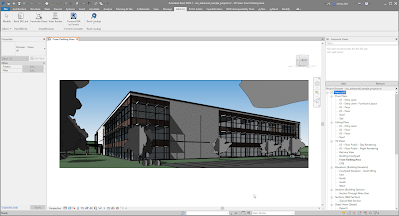
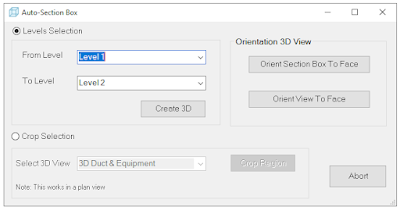
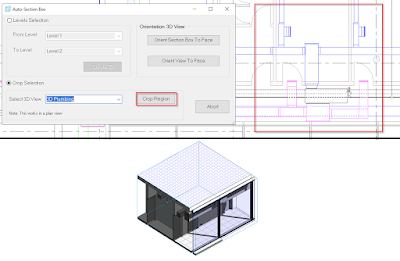
Auto-Section Box

From the Autodesk App Store:

Description

This tool is designed to Auto-section a box for levels and crop selection and change orientation in 3d view.


Tuesday, January 11, 2022

Design Option View Isolator

From the Autodesk App Store:

Description

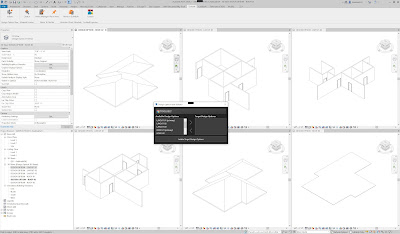
Isolate and organize your Autodesk® Revit® Design Options into their own 3D views so that it is easier to export them separately prior to importing them into a visualization software that supports multiple file import. This tool will make your design option exporting workflow more efficient by taking care of all the required steps to isolate a design option into its dedicated 3D view for you.

For detailed description visit: https://thetoolbelt.com/design-option-view-isolator


Thursday, December 23, 2021

RV Browser — A Powerful Model Management Tool

From the Autodesk App Store:

Description

To get the latest trial of this app for all Autodesk® Revit® versions before since 2016, visit https://rv-boost.com/revit-plugins/rv-browser-bim-with-power

Say goodbye to bloated file size, redundant Revit items, and poor model management. With RV Browser, it is amazingly easy to:

  • Understand the state and progress of your model by seeing all its elements, even hidden ones.
  • Select elements of interest to edit all their properties at once.
  • Filter elements using properties such as Phase or Level, or any of your existing Revit view filters.
  • Quickly search for all elements containing a word or phrase in their names.
  • Quickly see if Revit elements are on the right worksets.
  • Check how many elements are in each Design Option.
  • See exactly who created or last modified an element to ask them relevant questions.
  • And much more!

Why not start right now with this 14-day, fully-functioning trial?

Thursday, December 9, 2021

Free Crop View

From the Autodesk App Store:

Description

Crop View add-in is designed for quick crop view on 2D View or 3D View. The view area will quickly be fixed to the region defined by the drag mouse of the user.


Friday, December 3, 2021

Free Auto Section Box for Linked Elements

From the Autodesk App Store:

Description

This application creates a section box around selected elements in Autodesk® Revit® link files.

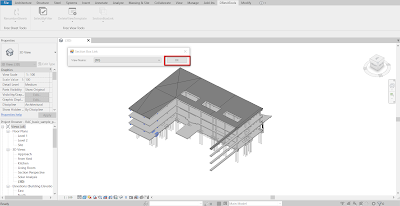
You must select the button "SectionBoxLink" first, then select the elements in Revit Links.

A dialog will appear to ask you to select which 3D View you want to apply the new section box. Select the desired one and Click OK.


Friday, November 26, 2021

ViewCropper

From the Autodesk App Store:

Description

ViewCropper will allow you to Crop or Section Box a view based in current selection. Features:

  • Crop or Section Box by Selection, including elements in linked files. If linked file is selected ViewCropper will ask you to select elements in linked file.
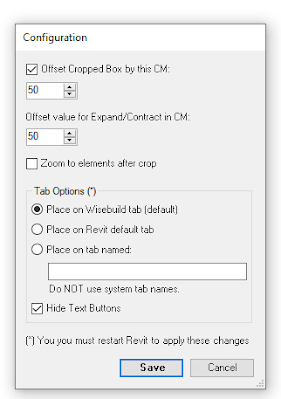
  • Defined default offset for both Crop or Section Box.
  • Easy expand and contract Crop or Section Box. Ctrl + click will double expand or contract. You can define default amount.
  • You can save or restore Crop or Section Box. Stored box is interchangeable, you can save as Crop but Restore as Section Box or vice versa.


Sunday, November 21, 2021

Batch Convert Floor Plans and Ceiling Plans to 3D

From the Autodesk App Store:

Description

The tool will generate 3D view for a batch of selected views.

The tool will work with floor plan and ceiling plan.

The tool will use the view crop box boundary to generate the 3d view.

If you need to change the boundry of 3d so adjust the crobbox first.


Wednesday, November 17, 2021

SectionBox Animator

From the Autodesk App Store:

Description

SectionBox Animator is an Autodesk® Revit® plugin that allows users to create instant Gif animations via the Revit section box with the ability to specify the direction, speed and section count for the animation. The plug-in could be used for architectural, structural or mechanical presentations, reviewing of models and designs, to prepare marketing materials instantly.


Monday, October 18, 2021

Replicate Crop Region

From the Autodesk App Store:

Description

This plugin will help you to set the same crop region from a selected view to the desired ones in an accurate and quick way. Also, you have the possibility to set the Crop View and the Crop Region Visibility to the selected views at once.

Wednesday, October 13, 2021

Free Filter Isolator

From the Autodesk App Store:

Description

The plug-in is very useful to see quickly the instances of Autodesk® Revit® filters.

You can select one or more Revit filters from a grid and you can choose if you want to temporarily isolate or hide the instances of the filters in the active view.

You can change the view and maintain filter selections so you can apply your choice in every view without redefining it.